
You love the idea of playing high-powered Xbox games on the go? Without needing the Xbox console. Xbox Cloud Gaming makes it possible for you.
Through Xbox Cloud Gaming you can stream games directly to your devices, and enjoy high quality games on your phone, tablet or PC.
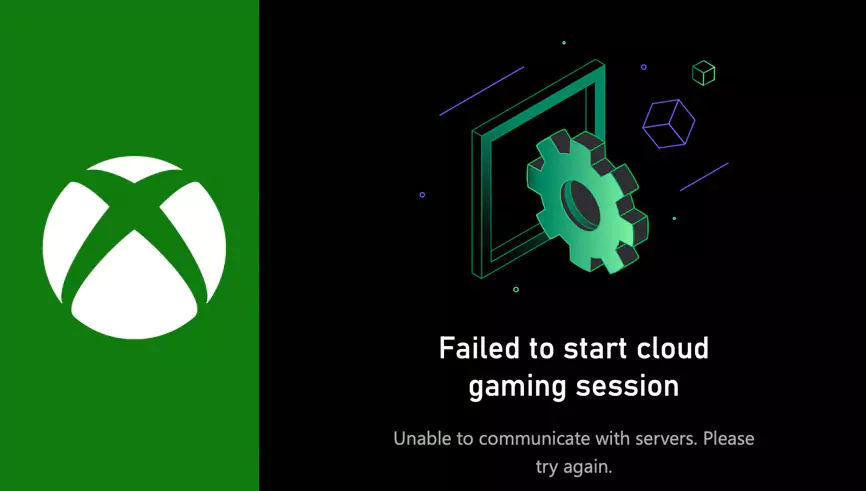
However, if you are facing the frustrating issue of “Disconnected from cloud gaming session” error, then it could disrupt your gaming experience.
This unexpected error throws you out of the game.
Anyway, fear not, in this article I’ll give you step-by-step guides to solve this error of Xbox Cloud Gaming.
Steps to Fix the ‘Disconnected from Cloud Gaming Session’ Error:
1. Restart Background Intelligent Transfer Service (BITS) from Windows Services
The Background Intelligent Transfer Service (BITS) plays an important role in managing data transfers for many applications, including your Xbox Cloud Gaming.
If this service faces any issue, it can lead you to this error of cloud gaming.
Here's how to restart BITS and resolve the error:
- Access Services Management: In the Start Menu search for “services”. Click on the first result to launch the Services window. Here, you can manage and control various background processes on your PC.
- Restart BITS: In the services, find "Background Intelligent Transfer Service" from list (alphabetically ordered).

- Check if it is running or not. If it’s running then, Right-click on the service and select “Restart" from the context menu. And, if it’s not running then select “Start”.

This will stop and then restart the BITS service, and it will solve the error which might have caused ‘Disconnected from Cloud Gaming Session’ error.
Also Read: Can Xbox Series S Run GTA 6?
2. Restart Your PC/Xbox App
Sometimes a simple restart can work wonders. Close the Xbox app completely, then relaunch it. If you're on PC, you can find it in your Start menu or taskbar. Along with that, restart your PC as well, to get a fresh start and avoid if there’s any temporary glitches.
This quick restart can often clear temporary glitches and get you back to your cloud gaming session in no time.
3. Verify your Network Connection
Since the Xbox Cloud Gaming is mainly dependent on online connection. A Stable network connection is very important and before using the deeper troubleshooting, verify if your device is receiving the internet connection properly or not.
Try running the internet speed test to check if you meet the minimum speed requirement for cloud gaming or not.
Or, try changing the network connection. Switch to your phone hotspot or any other network connection, to check if you are facing the error because of your network issues.
4. Update to latest version of Windows 23H2
Microsoft regularly releases the updates to address bugs and improve compatibility issues with online services like Xbox Cloud Gaming.
Make sure your Windows is updated to its lates version of 23H2, so that your PC runs smoothly and minimizes the chances of encountering the error due to outdated software.
Check from your system Settings if any Windows update is pending. Updates might include compatibility fixes for the Xbox app. This will potentially resolve the "disconnected from cloud gaming session" error.
5. Update the Game/Xbox App
Developers frequently release updates that address bugs, glitches, and performance issues. Keep your game and Xbox App up-to-date, it’s essential for running cloud gaming smoothly.
Let's take a look at how to update the game and the Xbox app:
- Update the Game: Open the Xbox app and go to your game library. Locate the specific game you're facing the issue with and check if there’s any available updates.
- Download and install the updates to ensure you're playing the latest version.
- Update the Xbox App: Head over to the Microsoft Store app on your PC. Click on the Library section and look for updates under "Updates & downloads".
- If an update is available for the Xbox app, download and install it for latest bug fixes.
6. Run Xbox Networking Troubleshooter:
Xbox has a built-in troubleshooter specifically designed to fix any network connectivity problems, which could be the culprit behind your "disconnected from cloud gaming session" error.
Here's how to use this helpful tool:
- Access Network Settings: Open the Xbox and open Settings. From there, locate the "Network" section and select it. This will display all your network-related options.
- Run the Troubleshooter: Within the Network settings, you can see an option to "Test network connection". Click on this option to initiate the troubleshooting process.
You can also try re-installing Xbox App in your PC, this will reset your app and fix the bugs and any temporary issues, which would be causing “Disconnected from Cloud Gaming Session” error.
Additional Tips:
If none of the above fixes works for you, then consider using wired ethernet connection to have a more stable internet connection compared to Wi-Fi.
You can also check the server status of Xbox Cloud Gaming from their official website, if there’s server down. Check from here Xbox Status.
And still, if the problem persists try to reach out to Xbox support, through mails or various forums of Microsoft, you will get some other solutions to fix this error.
FAQs
Q1. How do I fix cloud gaming disconnected?
Ans: Restart Xbox App, check Wi-Fi, update Windows/Xbox, run network troubleshooter. Contact Xbox Support if issues persist.
Q2. How do I get better connection on cloud gaming?
Ans: Use wired ethernet, ensure enough bandwidth, close background data usage apps.
Q3. Do I need game pass for cloud gaming?
Ans: Yes, an active Xbox Game Pass Ultimate subscription is required.
Q4. What is the minimum Internet connection for cloud gaming?
Ans: The minimum internet connection speed for Xbox Cloud Gaming depends on the device, Mobile devices and tablets require 10 Mbps. Consoles and PCs require 20 Mbps download speed.


