
Sometimes you might get stuck on "Game Aborted. Try Reconnect" error in Escape from Tarkov. This frustrating message pops up when you’re about to enter a raid, which will abruptly halt your progress.
Imagine you gearing up meticulously, then getting denied entry at the last second, frustrating right?
Not only this ruins our mood, but also disrupts the fast-paced nature of Escape from Tarkov.
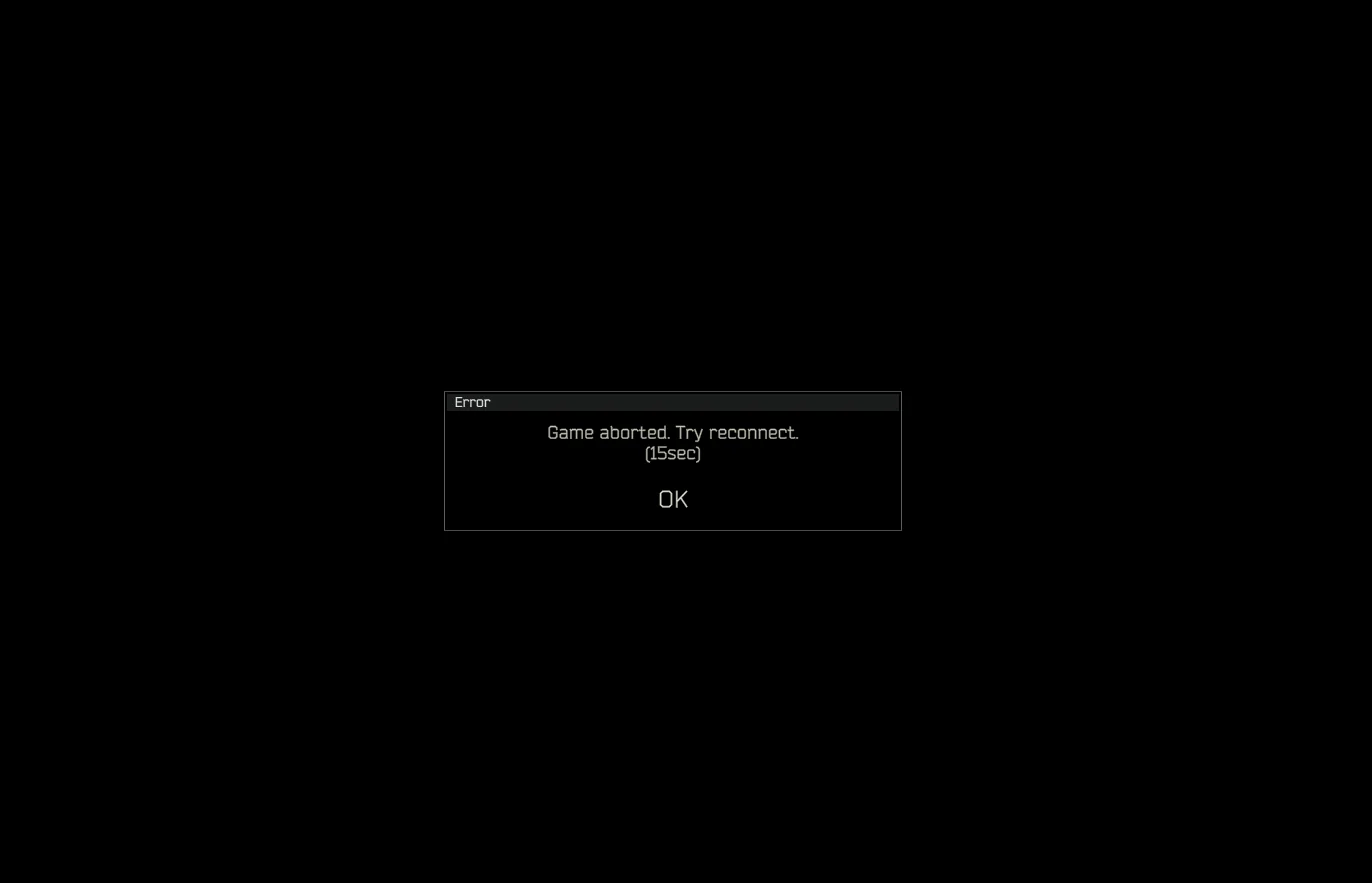
A stable network connection is very much important for this hardcore shooter. Without it, you’ll keep getting these, one or the other error messages.
This article will guide you step-by-step to fix the “Game Aborted. Try Reconnect" error in Escape from Tarkov, to get you back into raids.
Tarkov game aborted try reconnect Step-by-Step Fix:
1. Changing the DNS Server in windows
Changing your DNS server can potentially fix the "Game Aborted. Try Reconnect" error by improving your connection's efficiency.
- Search Control Panel and open Network and Sharing Center.
- Click Change adapter settings and right-click your connection (Wi-Fi or Ethernet).
- Choose Properties then select Internet Protocol Version 4 (TCP/IPv4) and click Properties.
- Find DNS server assignment and switch to Use the following DNS server addresses.
- Enter 8.8.8.8 (Google) or 1.1.1.1 (Cloudflare) under Preferred DNS server.
- Click OK and restart your PC.
2. Changing your nickname in game
Yes, literally changing your nickname in the game can fix this issue. On various forums, it is reported by users that simply changing their in-game nickname fixed this error.
Follow these steps to change your nickname:
- Launch the game and go to the Main Menu.
- Click on the Character tab at the bottom left corner.
- In the bottom right corner, click on the Settings button.
- A new window will appear. Select the Game tab.
- Under the Game tab, look for the option Nickname.
- enter your new nickname, click the Change button and restart your game.
3. Try Disabling IPv6 and DNS flush
Consider disabling IPv6 and doing DNS Flush if the error persists.
Disable IPv6:
- In the Windows Settings click and open Network & internet.
- Click on Change Adapter option.
- Right-click your active connection (Wi-Fi or Ethernet) and choose Properties.
- Uncheck the box next to Internet Protocol Version 6 (TCP/IPv6) and click OK.
- Restart your PC.
Flush DNS:
- Open Command Prompt (search for "cmd" in Start Menu).
- Right-click and choose Run as administrator.
- Type the following command and press Enter: ipconfig /flushdns
- You'll see a confirmation message if successful.
Launch Escape from Tarkov and see if the error is still there.
Read Also: How to fix Escape from Tarkov the game cannot be started error.
4. Check with your ISP
If you tried other fixes and still the error persists, check if you are facing network instability and try contacting your Internet Service Provider.
You can also try changing your ISP, for many users changing their internet service provider has fixed the error.
5. Temporarily disable Windows Defender firewall and antivirus.
Sometimes the Windows Firewall messes with the game to run properly and it restricts the game to use your network properly. Try disabling it or any antivirus if you have installed.
Be cautious after disabling, it makes you system vulnerable to outside threats. You can also try adding Escape from Tarkov as an exception.
This will allow the game to communicate freely without firewall interference.
6. Restart PC, router and verify game integrity through launcher.
Restart you PC and router. Sometimes, a quick reboot of your PC and router can clear temporary glitches that might be causing the Game Aborted error.
Turn off your router completely for 30 seconds before turning it on again.
If the error didn’t go, try verifying the game files from the launcher, be it a Steam or any other launcher you are using.
The launcher will scan your game files and fix corrupted files if there’s any. You can simply google the steps to verify the game files.
7. Reinstall Escape from Tarkov as a last resort.
Finally, if you are tired of trying all the troubleshooting methods. Re-install your game as a final method to fix the “Game Aborted. Try Reconnect” error.
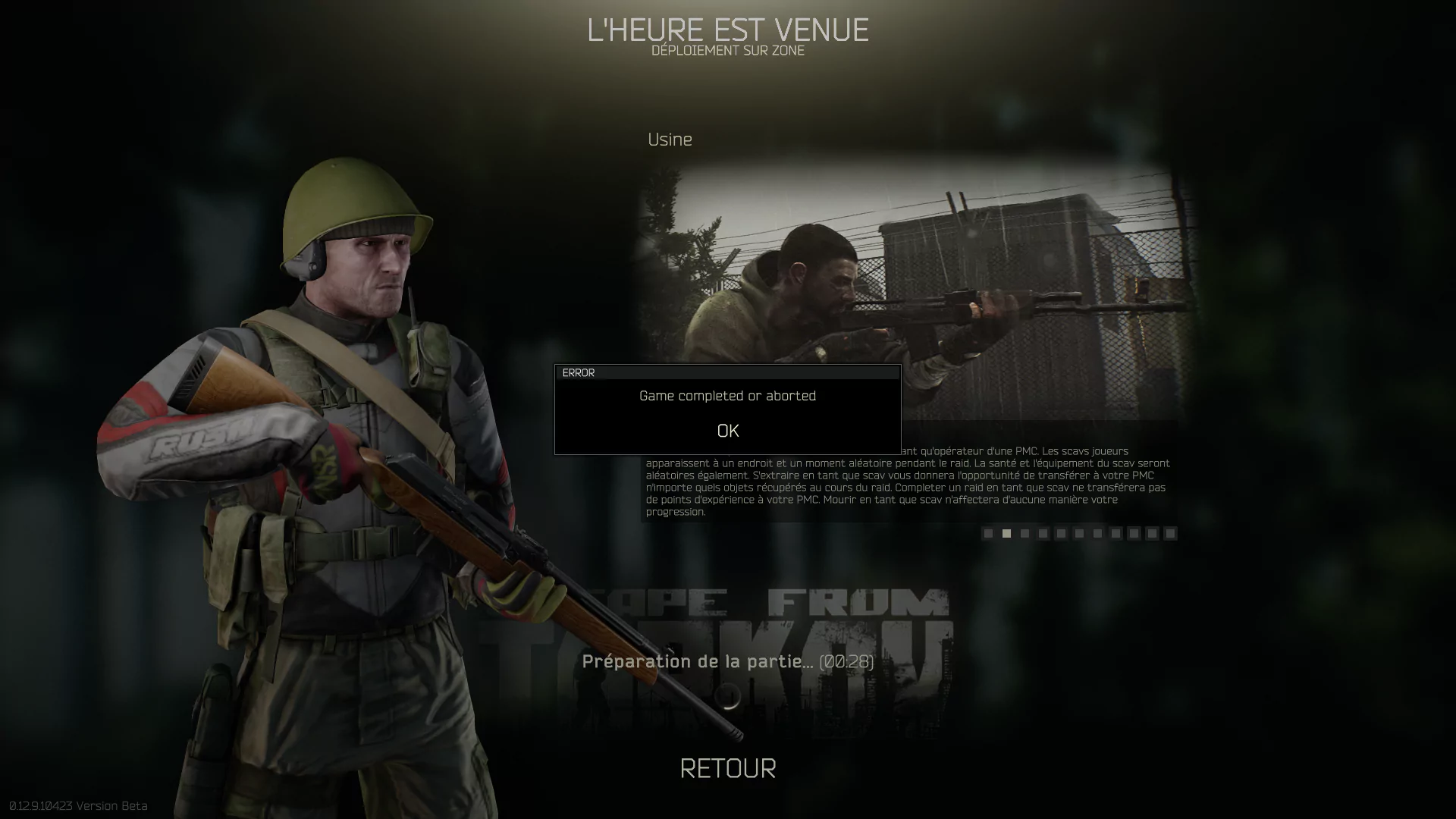
Make sure to keep your important files safe then proceed to uninstall the game and install it again. launch Escape from Tarkov and pray the "Game Aborted" error is finally gone!
Conclusion:
The “Game Aborted. Try Reconnect” error can throw a wrench into your Escape from Tarkov experience.
Don’t loose hope, PMC! In this guide I have covered almost all the fixes to solve this issue. Remember, to take a methodical approach. Start with simple fixes like restarting your PC and router, then move to verifying game files and checking with ISP.
If the issue is still not gone, try changing your nickname (so many have found success with this unconventional fix!). As the last fix try uninstalling the game and reinstall.
Remember to be patient and not to hit the mouse on your table.
Many people have fixed this issue by following these simple steps as mentioned above and many are still facing the issue without any fixes.


